
Hardcore Windows Xp Hacking Technique Revealed By Cain & Abel - Latest Hacking Tricks
Here we use the tool "Cain and Abel" for cracking passwords of any local user/administrator.
First download cain and abel from "http://www.oxid.it/cain.html" and install it on your system.
Make sure that you have disabled the antivirus/firewall running on your system before installing and throughout this process.
Two most effective techniques used here are "Brute-Force" and "Cryptanalysis".
Brute-Force:- As this techniques takes more time to complete, the attacker prefer this technique only when there is a hope that the password contain same type of characters or may be two. i.e only loweralpha, only alpha, only numeric or may be loweralpha-numeric, also it should contain less than 7 characters. Otherwise it takes more time to crack password, which may be the mixture of all types of characters along with special symbols.
The step-by-step explaination for this technique is given below-
1) Open the tool "Cain and Abel"


2) Go into the category "Cracker"
 it displays all sub-categories under "Cracker" in left panel.
3) Select "LM & NTLM Hashes" from left panel and then click on
 symbol, you will be greeted by a window as shown.
4) Check "import hashes from local system" and then click "Next". This shows all the active accounts on local system like administrator, guest, etc. along with LM and NT hashed values of their respective passwords, as shown below.

5) Right clicking on any username shows all available options using which we can crack it's password.

6) Here we select "Brute-Force Attack" and then "NTLM Hashes", since windows uses NTLM hashes to store local users' passwords.
7) You will be greeted by a window where you can modify properties for brute-force attack such as password length, character set, etc.

8) Click on "Start" button.
9) On completion it will reveal the exact password.

Thats it.having any query, mail us at upgoingstar@yahoo.co.in
9:47 AM 2
Remove Unremovable Desktop icons
To create your own customized XP interface, you need to be able to remove certain desktop icons. A Registry hack lets you remove any you want, including those apparently protected by XP.
Creating the perfect, customized XP interface doesn't only mean changing icons; it also means removing them. For example, many power users look down their nose at America Online, and yet, on many systems, that icon can't be removed easily.
America Online isn't the only icon protected this way; many others are as well. Which desktop icons are protected on your system will depend on your exact version of XP (for example, SP-1) and the manufacturer of your PC. The Recycle Bin is protected on all versions, but the America Online icon is protected on some systems, and not on others.
To customize XP to your liking, you'll want to be able to delete these protected icons. To do so, you'll need a Registry hack. Run the Registry Editor and go to
HKEY_LOCAL_MACHINE\SOFTWARE\Microsoft\Windows\CurrentVersion\Explorer\Desktop\NameSpace.
Here's where you'll find various special desktop icons. They're not listed by name, but instead by CLSID—for example, {645FF040-5081-101B-9F08-00AA002F954E} for the Recycle Bin. Table 2-3 lists CLSIDs of common desktop objects, so use it to find the CLSID of the icon you want to delete.
To remove an icon from the desktop, simply delete the key of the icon—for example, {645FF040-5081-101B-9F08-00AA002F954E} for the Recycle Bin. Then exit the Registry, go to your Desktop, and press F5 to refresh the screen. The Recycle Bin icon should now be gone.
On some systems, the icons may not be deleted immediately. Instead, after making the Registry change, you might have to right-click on the icon and choose Delete.
Some CLSIDs in HKEY_LOCAL_MACHINE\SOFTWARE\Microsoft\Windows\CurrentVersion\Explorer\Desktop\NameSpace
can be deleted from the desktop without having to go through this procedure, but when you try to delete them they may give you a special warning message. For example, when you try to delete Microsoft Outlook from the Desktop, you get the warning message "The Outlook Desktop icon provides special functionality and we recommend that you do not remove it."
If you'd like, you can edit that message to display whatever you want. In the CLSID's subkey—for example, {00020D75-0000-0000-C000-000000000046} for Microsoft Outlook—you'll find the value Removal Message. Edit this value to whatever text you want, and your warning message will appear whenever someone tries to delete the icon.
Keep in mind that when you remove desktop icons you're removing only icons, not the underlying feature or program. So, the Recycle Bin still works even if you remove its icon. To open the Recycle Bin, go to C:\RECYCLER and open the folder inside it. To restore an item that's been deleted, right-click on it and choose Properties Restore. Delete items as you would any other item.
Hack 12 Rename and Change "Unchangeable" Desktop Icons and System Objects
To create the perfect XP interface, you want to be able to give every desktop icon and system object the name and icon of your choice. Here's how to do it—even to objects that appear to be unchangeable. Interface hackers (myself included) are a details-oriented bunch. We want to be able to control every part of the interface so that it reflects our personality. That means being able to choose our own icons for desktop items and system objects, give new names to system objects, and create our own balloon tips—for example, adding a balloon tip to the Recycle Bin saying "Take Out the Trash!" But it's not as simple as you might think. Microsoft has a way of protecting its own. For example, it won't let you change the text and balloon tips associated with a variety of system objects, such as the Recycle Bin, Outlook, Internet Explorer, My Computer, and My Network Places. You can normally change both the name and the balloon text (text that appears when you hover your mouse over the icon) of all the icons on your desktop, but you can't change these. Normally, to change the name and balloon text of an icon, you first right-click on the icon and choose Properties. To change the name of the icon, you choose the General tab and, in the box at the top, type in the name that you want to appear beneath the icon. Then, to change the balloon text, you click on the Shortcut tab and in the Comment box type in the text that you want to appear. When you're ready to make the change, click OK. The icon name and balloon text should now be changed. But when you try to do this for system objects such as Outlook, Internet Explorer, My Computer, and Network Neighborhood, it won't work. The proper options don't appear when you right-click on them and choose Properties. There are ways, however, to change them in any way that you want, so that you can create your own personalized XP interface. 2.6.1 The Registry to the RescueThe Registry is your best tool for personalizing XP. It will let you change both the text and balloon tip associated with system objects. First, you need to know the object's class ID (CLSID), which uniquely identifies each system object. Table 2-3 lists the CLSIDs for common desktop objects.
|


11:53 PM 0
How To Speed Up My Shutdown Speed in Win XP :Learn Latest Computer And Mobile Hacking Tricks
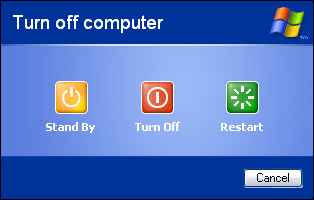
It's not only startup times that you'd like to speed up; you can also make sure that your system shuts down faster. If shutting down XP takes what seems to be an inordinate amount of time, here are a couple of steps you can take to speed up the shutdown process:
Don't have XP clear your paging file at shutdown
For security reasons, you can have XP clear your paging file (pagefile.sys) of its contents whenever you shut down. Your paging file is used to store temporary files and data, but when your system shuts down, information stays in the file. Some people prefer to have the paging file cleared at shutdown, because sensitive information such as unencrypted passwords sometimes ends up in the file.
However, clearing the paging file can slow shutdown times significantly, so if extreme security isn't a high priority, you might not want to clear it. To shut down XP without clearing your paging file, run the Registry Editor and go to:
HKEY_LOCAL_MACHINE\SYSTEM\CurrentControlSet\Control\Session Manager\Memory Management
Change the value of ClearPageFileAtShutdown to 0. Close the Registry and restart your computer. Whenever you turn off XP from now on, the paging file won't be cleared, and you should be able to shut down more quickly.
Turn off unnecessary services
Services take time to shut down, so the fewer you run, the faster you can shut down.
11:47 PM 0
How To Dial-Up Automatically On Startup

Save yourself from having to hand-connect to the Internet before surfing with Firefox.
This hack explains how to automatically dial up your ISP when Firefox starts. Disconnecting is more problematic. Attack that using timeout configuration items provided by the operating system. If you want Firefox to auto-dial for you, this preference must be left on:
network.autodial-helper.enabled /* default = true */
Windows 95/98/98SE/ME
Dial-up technology under these Windows versions has a top layer called Dial Up Networking (DUN). To get this working without fail, make a copy of a Firefox desktop shortcut and change the copy. Change the specified firefox.exe program to run firefox.bat instead. Create that .bat file with these contents:
@echo off
start /B /MIN /W rundll32.exe rnaui.dll,RnaDial "connectoid"
firefox.exe
The string connectoid is the name of the connection icon in the Dial-Up Networking folder. It is case-sensitive. Do not use the name of a desktop shortcut that points to the connection icon. Change the name displayed on the new desktop icon to Firefox Internet or similar.
This fix always works, but there is an alternate way. Firefox has a File Work Offline menu option. If Firefox is started in Offline mode, changing it to Online mode will instruct Firefox to always dial the ISP for you.
It is also possible to make Firefox dial the ISP if the first web page request (such as the home page) fails. In order for this to happen, extra Windows setup is required. In the Internet Options Control Panel item, in the Connections tab, choose any radio button other than the one labeled "Never dial a connection."
Windows NT/2000/XP
Top-level dial-up technology under these Windows versions is called Remote Access Services (RAS). It should be started automatically when any program, including Firefox, attempts to access the Internet. If that's not working for you, check that the RAS Connection Manager and RAS Auto Connection Manager services are enabled using the Services icon in the Control Panel. The rules are otherwise the same as under 95/98/98SE/Me.
If it still isn't working, make a copy of a Firefox desktop shortcut and change the copy. Change the specified firefox.exe program to firefox.bat. Create that .bat file with these contents:
@echo off
start /B /MIN /W rasdial.exe "connectoid"
firefox.exe
The string connectoid is the name of the connection icon, as described in the previous section. It is case-sensitive. Do not use the name of a desktop shortcut that points to the connection icon. To suppress the dialog that prompts for your ISP login details, try this instead:
@echo off
start /B /MIN /W rasdial.exe "connectoid" "username" "password"
firefox.exe
|
3.6.3. Mac OS X
Automatic PPP dial-up under OS X is handled through System Preferencesthe same as automatic Internet connection of all types. To set it up, choose System Preferences under the Apple menu and follow these steps:
-
Click on the Network icon, in the Internet & Network group.
-
From the Show pop-up menu near the top of the window, select your modem.
-
Make sure the PPP tab is selected and click on the PPP Options... button near the bottom of the panel.
-
Tick the first checkbox labeled "Connect automatically when needed."
-
Click OK, and you're all set up.
3.6.4. Linux/Unix
To dial up before Firefox starts, just wrap the command-line call to Firefox in a shell script. Before you're ready to go, you must have the following things in place:
-
Modem hardware that's known (usually present; test with kudzu --probe)
-
Serial and PPP drivers in the kernel (usually present; test with modprobe -l)
-
Correct serial devices in /dev (usually present)
-
Software for PPP, such as pppd (usually present)
-
Software for DHCP, such as dhcpd (usually present)
For example, under Red Hat Fedora Core, much of the work is automated for you. Run this GUI tool and review the information in its help system:
/usr/bin/system-config-network
If no profile is defined for the modem, use the GUI to create one. In the DNS tab, clear all the DNS entries except for DNS Search Path. Enter the ISP's domain name here, making sure the IP address is also recorded, either in the /etc/hosts file or using the tool:
/usr/bin/system-config-bind
If dial-up access via DHCP has been started, Linux DHCP will usually overwrite the /etc/resolv.conf file, which can affect or ruin any existing DNS arrangements that you might have in place.
To configure and run dial-up by hand, configure dhcpd.conf to contain the ISP's DNS and IP Address information. Identify the tty in /dev that matches the modem, and simply run:
pppd /dev/modemtty
dhcpd
Those commands can go in the wrapper script that starts Firefox.
3:58 AM 0
Rename and Change "Unchangeable" Desktop Icons and System Objects : Hacking Tricks
To create the perfect XP interface, you want to be able to give every desktop icon and system object the name and icon of your choice. Here's how to do it—even to objects that appear to be unchangeable.
Interface hackers (myself included) are a details-oriented bunch. We want to be able to control every part of the interface so that it reflects our personality. That means being able to choose our own icons for desktop items and system objects, give new names to system objects, and create our own balloon tips—for example, adding a balloon tip to the Recycle Bin saying "Take Out the Trash!"
But it's not as simple as you might think. Microsoft has a way of protecting its own. For example, it won't let you change the text and balloon tips associated with a variety of system objects, such as the Recycle Bin, Outlook, Internet Explorer, My Computer, and My Network Places.
You can normally change both the name and the balloon text (text that appears when you hover your mouse over the icon) of all the icons on your desktop, but you can't change these. Normally, to change the name and balloon text of an icon, you first right-click on the icon and choose Properties. To change the name of the icon, you choose the General tab and, in the box at the top, type in the name that you want to appear beneath the icon.
Then, to change the balloon text, you click on the Shortcut tab and in the Comment box type in the text that you want to appear. When you're ready to make the change, click OK. The icon name and balloon text should now be changed.
But when you try to do this for system objects such as Outlook, Internet Explorer, My Computer, and Network Neighborhood, it won't work. The proper options don't appear when you right-click on them and choose Properties.
There are ways, however, to change them in any way that you want, so that you can create your own personalized XP interface.
2.6.1 The Registry to the Rescue
The Registry is your best tool for personalizing XP. It will let you change both the text and balloon tip associated with system objects. First, you need to know the object's class ID (CLSID), which uniquely identifies each system object. lists the CLSIDs for common desktop objects.
| Desktop object | CLSID |
|---|---|
| My Computer | {20D04FE0-3AEA-1069-A2D8-08002B30309D} |
| Recycle Bin | {645FF040-5081-101B-9F08-00AA002F954E} |
| Microsoft Outlook | {00020D75-0000-0000-C000-000000000046} |
| Internet Explorer | {FBF23B42-E3F0-101B-8488-00AA003E56F8} |
| The Internet | {3DC7A020-0ACD-11CF-A9BB-00AA004AE837} |
| My Network Places | {208D2C60-3AEA-1069-A2D7-08002B30309D} |
| Briefcase | {85BBD920-42A0-1069-A2E4-08002B30309D} |
| Dial-Up Networking | {992CFFA0-F557-101A-88EC-00DD010CCC48} |
Armed with the proper CLSID, it's easy to change the name and balloon text of system objects. First, use to find the CLSID for the object whose name or balloon text you want to change. Then run the Registry Editor and go to HKEY_CLASSES_ROOT\CLSID, a key that lets you change characteristics of system objects, and highlight the CLSID whose name or balloon text you want to change. For example, for My Computer, highlight the subkey HKEY_CLASSES_ROOT\CLSID\{20D04FE0-3AEA-1069-A2D8-08002B30309D}. Keep in mind that HKEY_CLASSES_ROOT\CLSID has many CLSIDs listed under it, so it might take you a while to find the proper subkey.
Once you find the right subkey, if you want to edit the name of the object, open the Default value and type in the text that you want to appear underneath the object. If you want to edit the balloon text for the object, open the InfoTip value and type in the text that you want to appear as balloon text. Once you're done, exit the Registry and reboot.
You may also be able to force the changes to take effect without rebooting. After you exit the Registry, go to your Desktop and press F5 to refresh the screen. The new names and balloon tips might now appear.
2.6.2 Change the Desktop Icons of System Objects
You can hack objects besides names and balloon with this method. You can also change the desktop icons of system objects that appear to have unchangeable icons.
First, using find the CLSID for the object whose icon you want to change. Then run the Registry Editor, go to HKEY_CLASSES_ROOT\CLSID, and look for the CLSID subkey from for the object whose icon you want to change. Open the subkey and then the DefaultIcon subkey under that. For example, to change the icon for My Computer, open the subkey HKEY_CLASSES_ROOT\CLSID\{20D04FE0-3AEA-1069-A2D8-08002B30309D}\DefaultIcon. Change the Default value to the path of the icon that you want displayed. Exit the Registry. You may have to reboot in order for the new settings to take effect.
8:53 AM 0
Implement Best Password policy For Windows Authentication
Some users use extremely short passwords, which can easily be brute forced. So in order to set the minimum number
of characters or the minimum length of the password, simply follow the following registry trick-:
1. Launch the Windows Registry Editor i.e. c:\windows\regedit.exe
2. Scroll down to the following registry key:
HKEY_LOCAL_MACHINE\SOFTWARE\Microsoft\Windows\CurrentVersion\Policies\Network
3. Click on Edit > New DWORD Value.
4. Name this new DWORD value as MinPwdLen and in the data field, enter the minimum number of characters
the password has to be of. One thing to note here is that this value is in Hexadecimal.
5. Now, Press F5 and your system just became a tiny bit securer but certainly not unhackable.
11:29 PM 0
How to Speed Up Windows XP
To disable unneeded startup services for a safer, faster XP, use the "Services" Admin Tool (Control Panel > Administrative Tools > Services). If you are a single user of a non-networked machine, you can disable the following items, with no ill effect.
Alerter
Clipbook
Computer Browser
Fast User Switching
Human Interface Access Devices
Indexing Service (Slows the hard drive down)
Messenger
Net Logon (unnecessary unless networked on a Domain)
Netmeeting Remote Desktop Sharing (disabled for extra security)
Remote Desktop Help Session Manager (disabled for extra security)
Remote Procedure Call Locator
Remote Registry (disabled for extra security)
Routing & Remote Access (disabled for extra security)
Server SSDP Discovery Service (this is for the utterly pointless "Universal P'n'P", & leaves TCP Port 5000 wide open)
TCP/IP NetBIOS Helper Telnet (disabled for extra security)
Universal Plug and Play Device Host
Upload Manager
Windows Time
Wireless Zero Configuration (for wireless networks)
Workstation
11:27 PM 0

 Posts
Posts

